 SurveyorSim
student guide · controls
Every control, written out
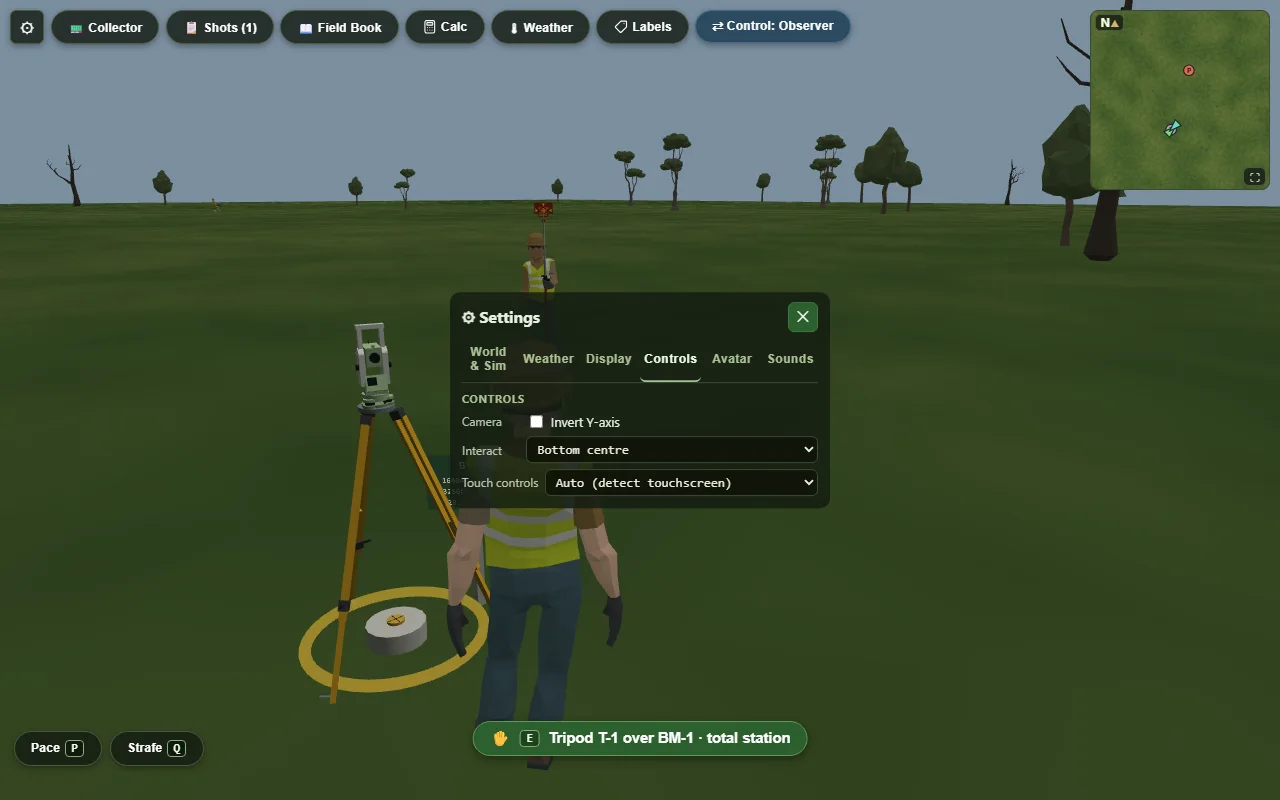
The sim has its own ? Help panel, and it is better than this page in one way: it follows the device in your hands, so a controller player sees controller buttons. It is worse in the way that matters right now — you cannot read it while you are stuck, on a phone, with the sim on another screen. So this is the same information, written out.
Moving
five speeds, on purpose| Key | What it does |
|---|---|
| W A S D | Walk. You move relative to the camera, and you turn to face where you are going. |
| Shift + W A S D | Run. |
| Alt + W A S D | Precision creep — a few centimetres a second, for easing onto a mark. |
| Arrow keys | Fine walk. They override WASD: hold an arrow and WASD is ignored. |
| Shift + arrows | Extra-fine. Slower again. |
The mouse orbits the camera by dragging, and the wheel zooms it.
In the field
the working keys| Key | What it does |
|---|---|
| E | Open and close the interact menu — everything you can do with whatever is in reach: place a tripod, mount an instrument, look through an eyepiece, change the rod, open the instrument-view porthole. |
| 1 … 9 | Pick that numbered action out of the open interact menu. |
| C | Swap between the observer and the rodman. Works at an eyepiece too — it steps you back from the glass first. Refused if a multiplayer session has locked you to a role. |
| F | The verb for what is in your hands: with the locator it puts the shovel in your hands, with the shovel it digs one pass, with the chain it stops the pull and opens the set-pin panel. With anything else, nothing. |
| Space | Hold to brace the rod, as the rodman. Watch the stamina arc and let go before it runs out. |
| Q | Lock and unlock strafe — side-step onto a mark without turning. |
| P | Start and stop pacing. Starting resets the count to zero; stopping leaves the number on screen so you can book it. |
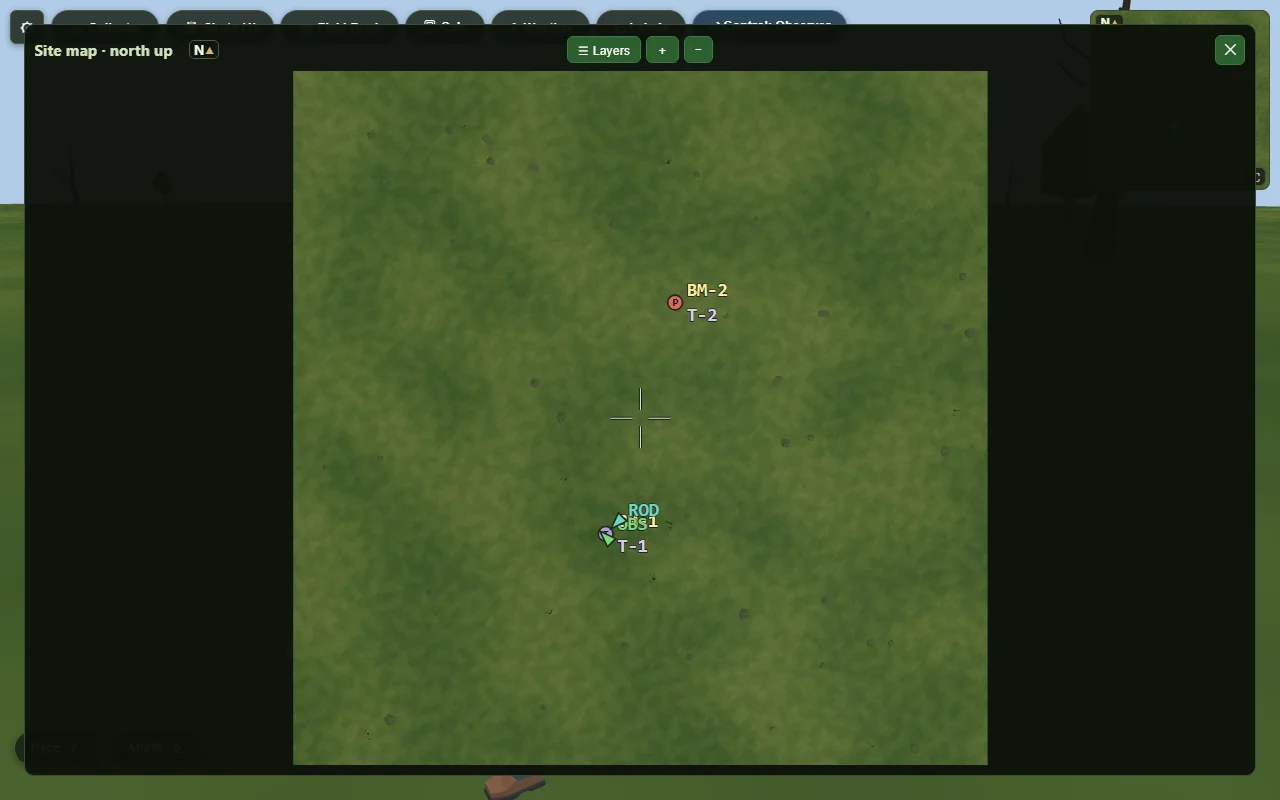
| M | Expand the site map. |
| T | Open and close the total station's telescope. |
| V | Cycle the instrument-view porthole — what the instrument can see, in a corner of your screen. |
At an eyepiece
aiming and leaving| Control | What it does |
|---|---|
| Drag | Aim. The finer the field of view, the finer the drag. |
| Arrow keys | Fine aim, one step at a time. |
| Mouse wheel | Zoom — at the total station's telescope only. There is no wheel zoom at the auto level and none in the rough sight. ⚠ This zoom is a simulator concession, not an instrument control. A real telescope is fixed magnification; you get a zoom here because a small screen makes the target hard to see. What you reach for on the real thing is the focus — and the reason you touch it is parallax: if the crosshair swims against the target as you shift your eye, refocus until it stops, or your pointing is off. |
| V | Swap between the telescope and the rough sight. Use the rough sight to find the prism first: the telescope's field of view is usually too narrow to search with. |
| T or Esc | Leave the eyepiece. |
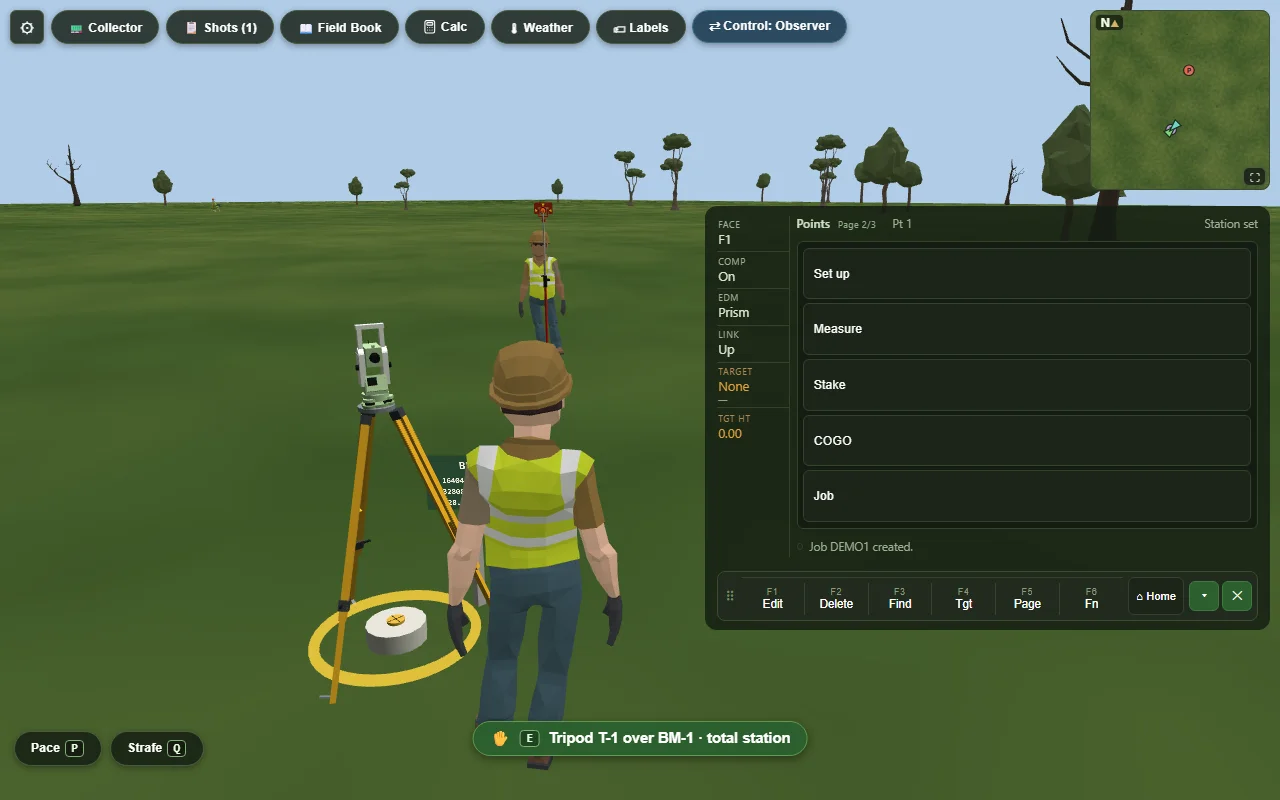
| [ ] | Turn the pages of the instrument display — total station only. |
| Tab → Read the pointing | Says the aim out loud, once, for a screen reader: which target you are on, how far off the crosshair sits, and in which direction. The button is invisible until you tab to it, then it slides up at the bottom of the eyepiece — it is there for people who cannot read the line printed on the glass, and it stays out of the way of everyone else. Press Enter to hear it again. ⚠ Mouse and gamepad cannot reach it: it has no tap target, and the pad aims the telescope rather than walking the controls. Use a keyboard, or a touch screen reader. |
What has no key at all
so you stop huntingThese are on-screen buttons and nothing else. Some of them have a controller button; none of them has a key.
- Measure, Set HA 0 and F1⇄F2 — the instrument's own keys.
- 📋 Shot Log — button only.
- 📖 Field book — button, or RB on a controller.
- 📟 Collector — button only.
- ⛏ Dig and 🔎 Locator — the shovel pair, in one HUD row. The dig button reads Dig here while the locator is in hand and Dig once the shovel is. Dig has the key F as well; the Locator is button only, and is how you get it back from the shovel.
- ☰ Layers on the expanded map.
- ⚙ Settings and ? Help — the cog menu, or MENU on a controller.
Touch
phone, tablet, ChromebookThe on-screen controls appear by themselves when the sim decides you are on a touch device. You do not turn them on — Settings has an override only for when it guesses wrong.
- MOVE is the stick at the bottom left. Push gently to walk slower.
- LOOK is the stick at the bottom right. It orbits the camera.
- Fast toggles running. It sits with the MOVE stick, and only exists on touch — on a keyboard that is Shift.
- Everything you interact with goes through the Interact chip. Tapping the ground does not walk you there, and tapping an object does not select it.
- Panels drag by their title bars, and remember where you put them.
Nine things §2 In the field teaches as keys have a button instead. That section is written for a keyboard, so it names the key and stops. Here is the same list with the control you actually tap. The words below are the words on the button — if the sim prints something different, the sim is right and this page is stale.
| To do this | Tap this | The key it lists |
|---|---|---|
| Swap between observer and rodman | the Control pill, top left | C |
| Dig, or the tool verb generally | ⛏ Dig — captioned ⛏ Dig here while the locator is in your hands | F |
| Steady the rod | hold 🫁 Brace | Space |
| Lock strafe — side-step without turning | Strafe | Q |
| Pace off a distance | Pace | P |
| Expand the site map | the 🗺 Map button | M |
| Cycle the instrument-view porthole | ◎ View | V |
| Pick an action from the interact menu | tap the row | 1–9 |
| Turn the instrument's LCD pages | Page ▷ on the LCD | [ ] |
Controller
one button, one meaningPress any button and every hint in the sim switches to controller labels, and back the moment you touch the keyboard. Layout, deadzone, look speed and hold-versus-toggle all live under Settings once a pad has been seen.
| Button | In the field | At the telescope | In a panel or menu |
|---|---|---|---|
| A button | Tool verb — brace, dig, set a pin | Measure | Press the highlight |
| B button | Close the weather kit or tide panel | Leave the eyepiece | Back out |
| X button | Interact menu | Set HA 0 | Close the interact menu · Layers, on the map |
| Y button | Swap observer ⇄ rodman | F1 ⇄ F2 (plunge) | — |
| Left and right bumpers | Site map / field book | MENU / Page | LB closes the map · ±0.10 ft in the pin minigame |
| Left trigger | Precision — a slower walk, a finer aim, and finer on the centring slide. Never the only way to reach anything. | ||
| Right trigger | Strafe lock | Measure (the trigger) | — |
| Left stick | Walk (L3 = run) | Aim | ▴▾ move through the interact menu · at the guided setup it works the legs, footscrews and centring slide · LT is finer on the centring slide. |
| Right stick | Camera | Aim | — |
| Right stick click | Pace off a distance | Telescope ⇄ rough sight | — |
| D-pad | ▴▾ zoom · ◂▸ swap locator/shovel | Step the aim (LT = finer) | ▴▾ move · ◂▸ adjust a dropdown or slider |
| Menu and View buttons | MENU opens and closes Settings, everywhere except an eyepiece. VIEW opens the site map, everywhere. It is not the ◎ View button on screen, which is the rodman’s instrument-view porthole — one word, two controls. The pad’s is Microsoft’s name for that button, not ours. | ||
- Default — the table above, exactly as it reads. Left stick walks, right stick looks, and the D-pad zooms with ▴▾ and swaps the locator and the shovel with ◂▸.
- Southpaw — the two sticks trade jobs. Left stick becomes the camera and Right stick walks, so rows one and two of the table are the other way round. Nothing else moves.
- One-stick — the camera comes off the sticks entirely and onto the D-pad, so the whole sim is playable with one thumb and one finger. The right stick goes quiet, ▴▾ tilts the view instead of zooming (there is no pad zoom under this layout), and ◂▸ turns the view.