 SurveyorSim
instructor guide · the walkthrough
Run your class in SurveyorSim
Everything from the first sign-in to grades in your LMS, in the order you'll actually do it. This guide is always one tap away — 📖 Guide sits in the classroom header on every screen. Each option on the classroom pages also carries its own ? bubble — hover it, or tap it on an iPad — so this page is the tour, not the only documentation.
Your account and your class
five minutes, once- Open the classroom → Instructor sign-in → Create account. Any email works; passwords need 10+ characters.
- Confirm your email. We send a link at signup. You can build classes and author sites immediately, but publishing to students is gated on a confirmed address — if the mail hasn't arrived, the classes page has a Resend link button.
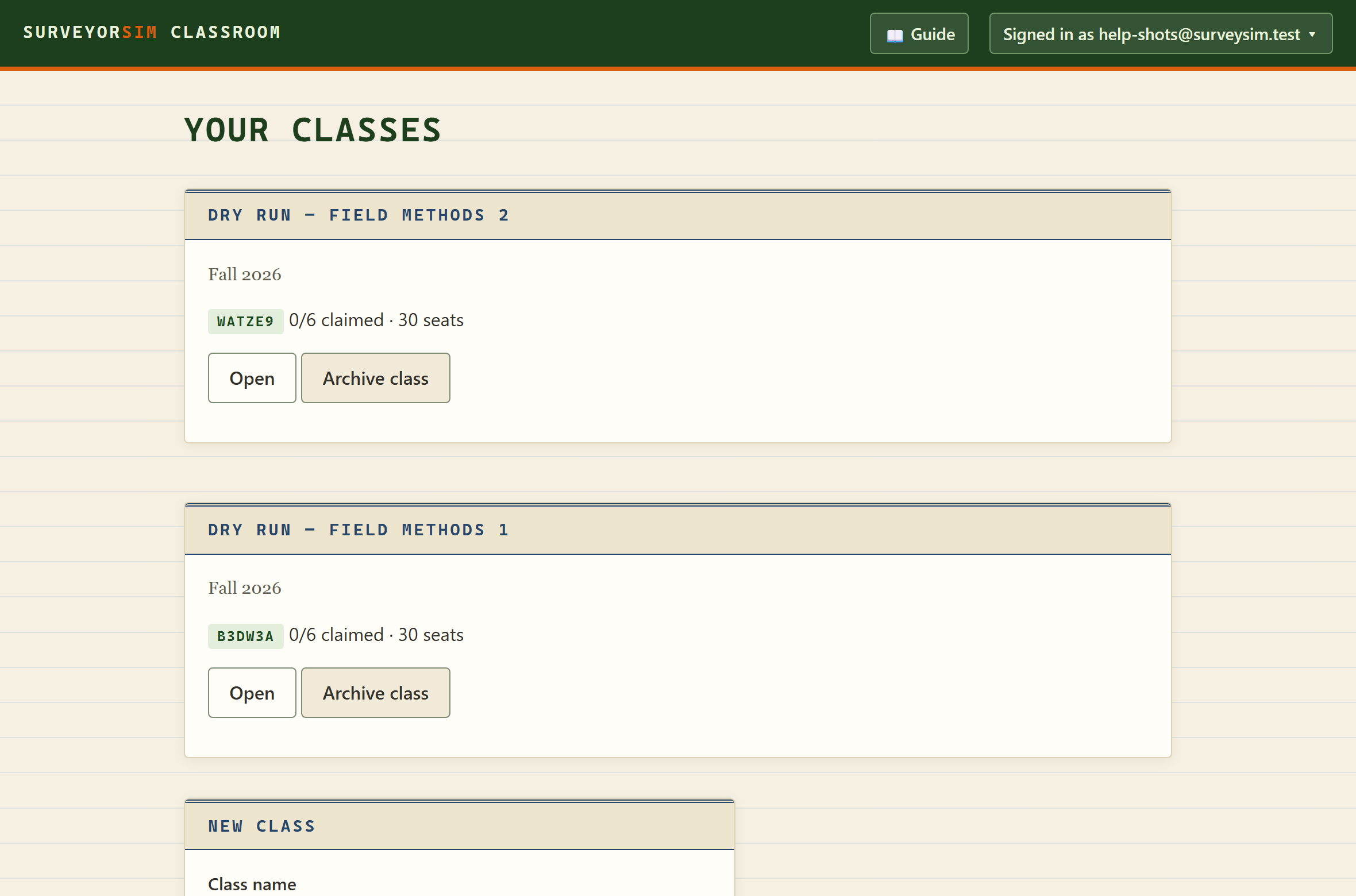
- Create a class — a name and an optional term. Each class gets its own join code and roster.
Roster and join codes
one code per student, no student passwords
Type or paste your student names into the roster — one per line. Optionally add an
address on the line (Pat Rivera <pat@school.edu>) and you can email
students their codes instead of handing them out.
Each student gets their own 8-character code. Print the slips from Print all codes and hand each student theirs. They go to the classroom page, choose I'm a student, enter the class join code, then their own code, then pick a 4-digit PIN. The code and the PIN together are their sign-in — you can look the code up any time, and you never see the PIN.
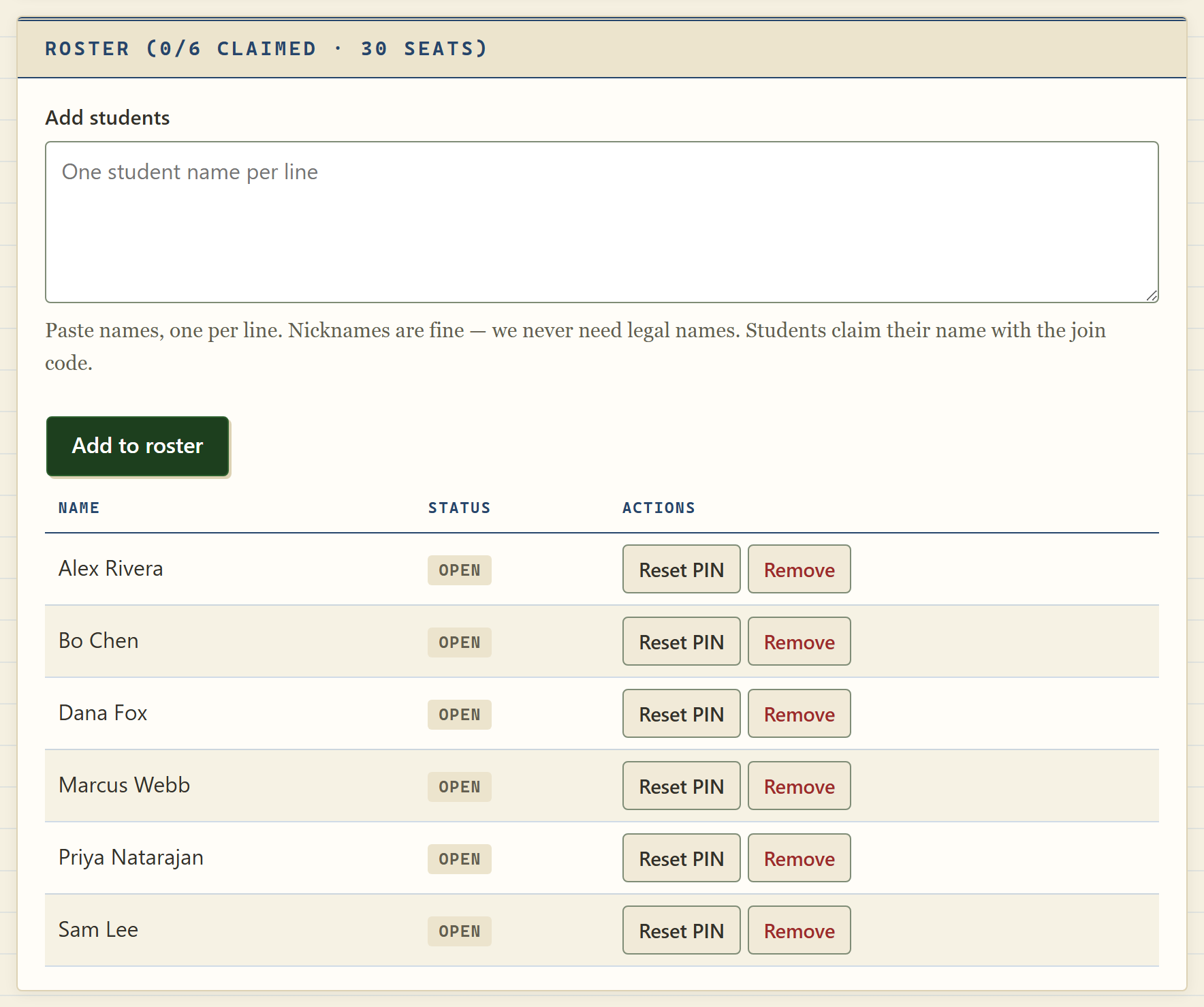
- Set each class’s size on its own page, under Class size. Your plan sets the ceiling and the field will not offer more than that; the roster heading shows what this class is set to. A limit below the students already on the roster is refused — remove them first, or pick a higher number.
- Reset a PIN from the student's roster row. It clears the PIN and issues a new code — the old slip stops working, and the seat's coursework stays put. Click the code chip for a ready-made message you can email or print. Nothing expires, and nothing is shown only once: the code is on the row, so a lost slip is a reprint rather than another reset.
- Seats are one per student, and the class join code alone opens nothing. Taking a seat needs that student's own code, so a join code on a whiteboard cannot cost anyone their work — or let a classmate sign in as them.
Post an assignment
every option has a ? bubbleAn assignment is an exercise — differential leveling, closed traverse, chaining, monument recovery, or stakeout — plus your settings. The fastest path is the site library below; the New assignment form is the full-control path. Either way it lands as a draft: students see nothing until you press Publish.
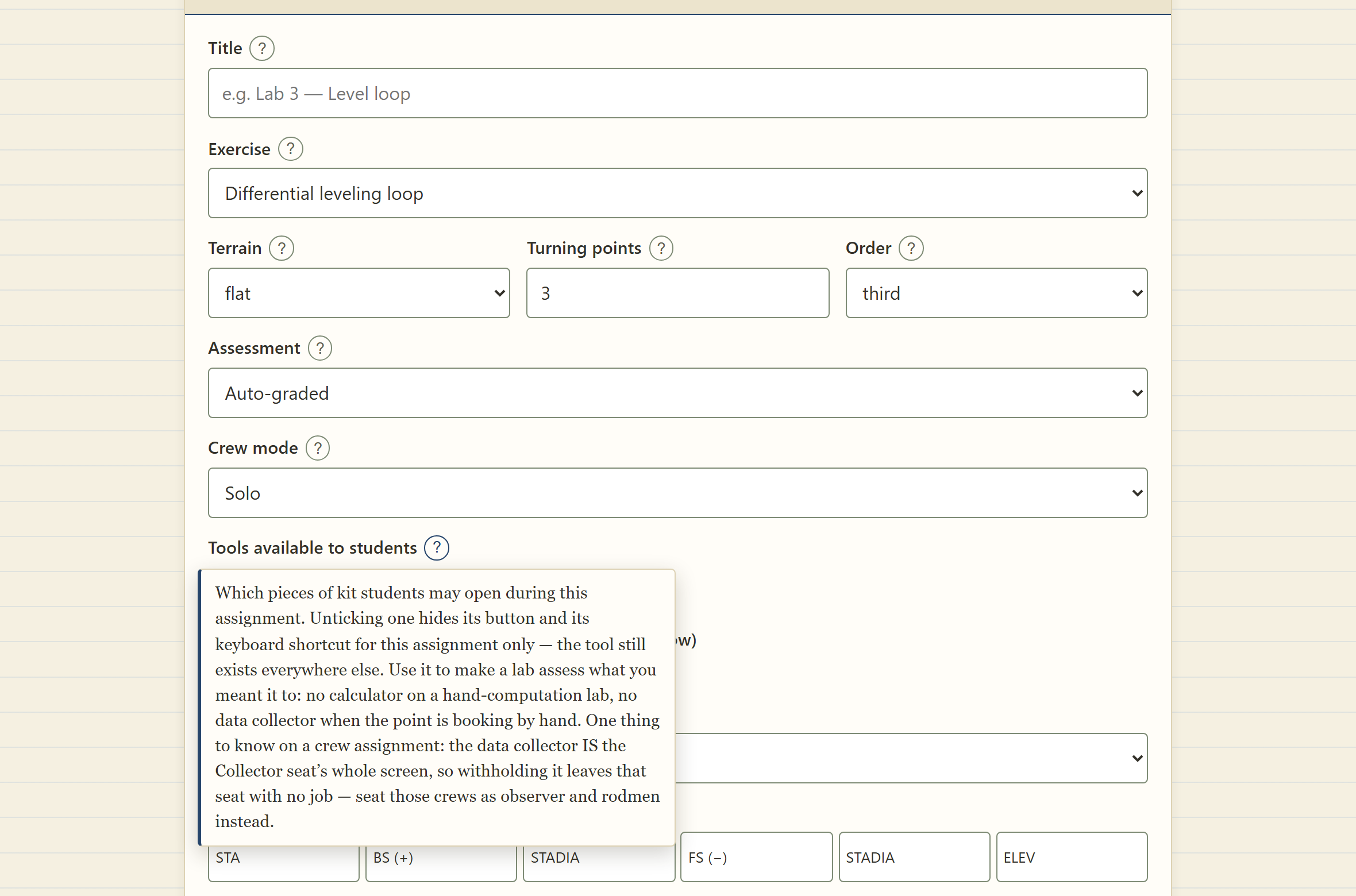
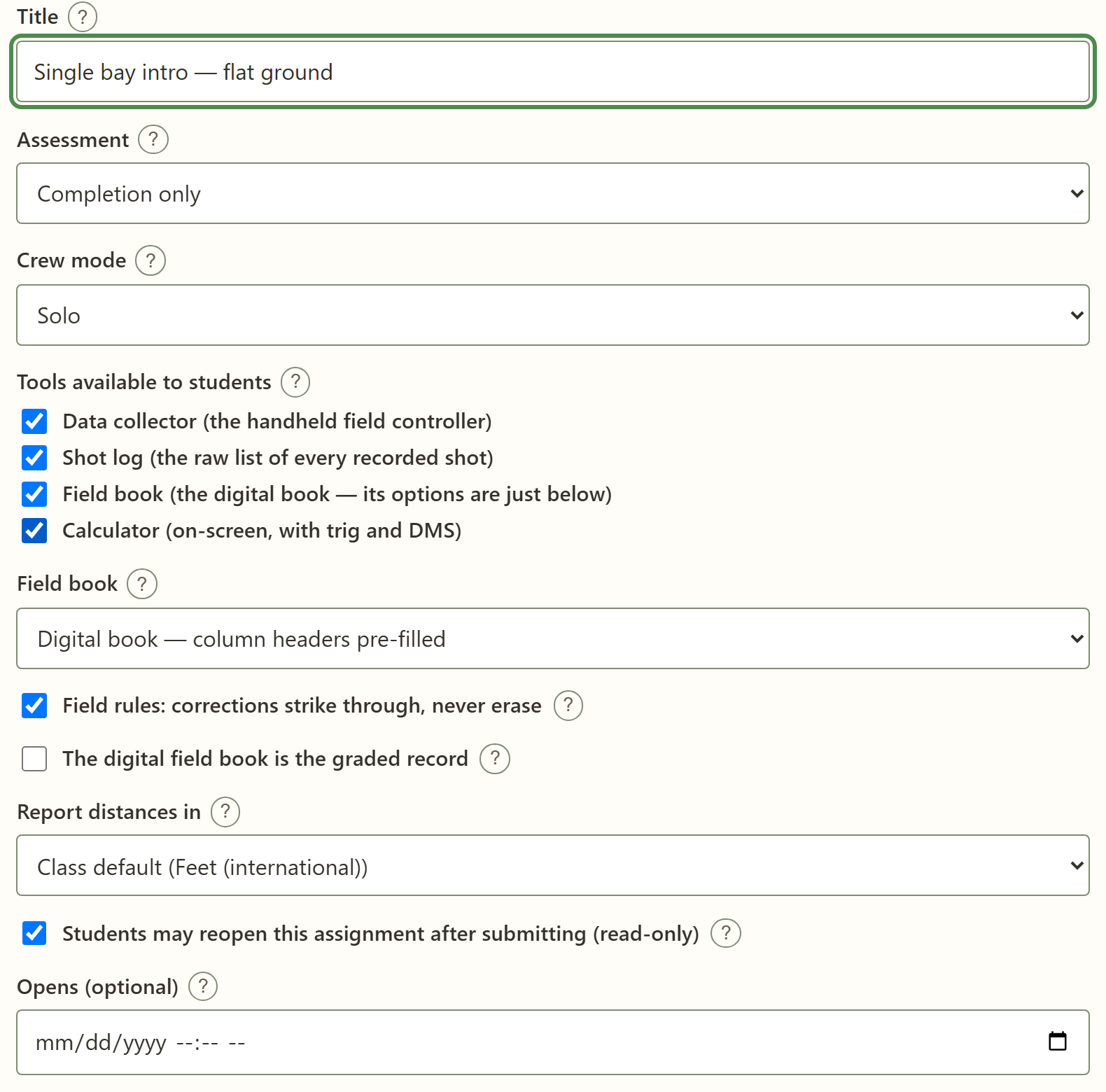
- Assessment = who grades. That is the whole choice. Auto-graded: the computer grades at hand-in and the student sees their score right away. Submission review: the sim records everything and waits for you — open Review on the student and enter the grade there. Auto + submission: the computer grades and you read the record behind it. Completion only: nobody grades — handed in or not is the whole assessment, and Results reads Handed in the moment it lands. On Submission review (and anything the auto-grader declined to score), Results shows Needs review until you enter the grade — that is the product waiting on you, not a fault.
- Tools available to students. The shot log and the calculator are ticks; the data collector is a three-way choice — Not available, Available, or Required. The field book ticks here too, but that box only mirrors the Field book setting below. Use them to make a lab assess what you meant it to: no calculator on a hand-computation lab, no collector when the point is booking by hand. The two ticks reach inside the handheld as well. Untick the calculator and the COGO screen goes with the on-screen one; untick the shot log and the Raw screen goes, together with the RW5 download that is the same file. The Raw screen is more than a list — Process Raw and Compass adjust live on it, and between them they recompute every coordinate and run the closure and compass-rule adjustment of the traverse. Those ride the shot log tick, not the calculator: on a traverse-computation lab untick the shot log as well, or the handheld does the reduction for the student. The Points screen stays either way — it is the list of points the student has stored, and with the Raw screen and the shot log both gone it is the only check on their own work they have left. Staking is untouched by either tick, so a stake-out lab still stakes out. Required shows the student an instruction at the start to record their work in the handheld, and never blocks a hand-in; on an auto-graded assignment it also notes any attempt that handed in no job, where the student does not see it. Withholding is silent on the student's side. An unticked shot log or calculator, and a collector set to Not available, simply leave no button, and the student is told nothing about what you took out. Say so on your handout if they need to know.
- Field book. Pre-filled column headers, blank pages, or guided; the no-erase strike discipline; and for leveling, whether the book is the graded record — leveling auto-grades from the tagged book, and the form warns you live if your combination has no grader.
- Crew mode. Solo, crew, or student's choice. Solo assignments have no multiplayer at all — the option is removed in the sim, not merely discouraged.
- Due dates don't lock anything — late work is accepted and stamped with its real submit time, so late policy stays yours.
- Edit details on the assignment row changes the envelope (title, dates, assessment, tools, book) any time — even after students start. The site freezes once real work exists; that's what Duplicate is for.
The site: library, builder, test run
walk it before they do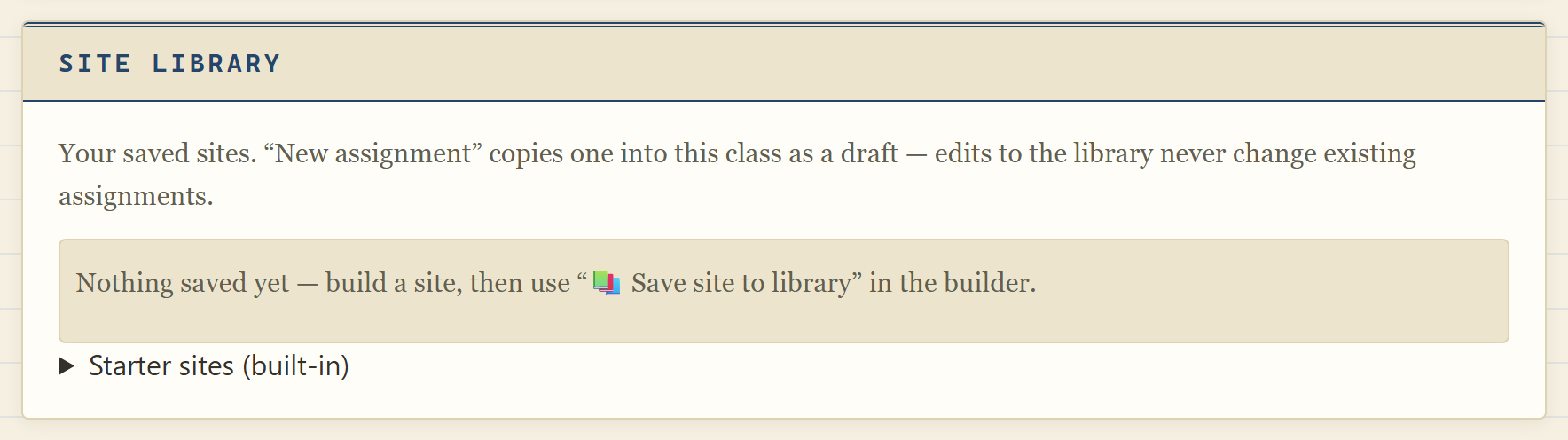
- Start from the library. Every stock recipe is publish-gate-verified — a one-click draft that will not refuse to publish. Your own saved sites live here too, and applying one is a copy: later edits to the library never touch a posted assignment.
- Author the ground with Edit site. The builder opens the assignment's world in the sim: place monuments and control, scatter or clean equipment, site notes, terrain paint, terraforming (raise, lower, smooth or flatten the ground itself), water — and reroll the seed until the ground suits the lesson.
- Test run walks the site exactly as a student will, with nothing recorded. Drafts included — that's the point.
- Publish. The publish gate checks the site's geometry first (required sight lines, reachability, wet truth at high tide) and refuses with a readable reason instead of letting a class discover the problem mid-lab.
Crews
one field party, one recordOn a crew assignment, each crew works as one field party in a shared live session: one student hosts, the others join, and every measurement carries the name of whoever took it. The Crews button on the assignment row is where you form them.
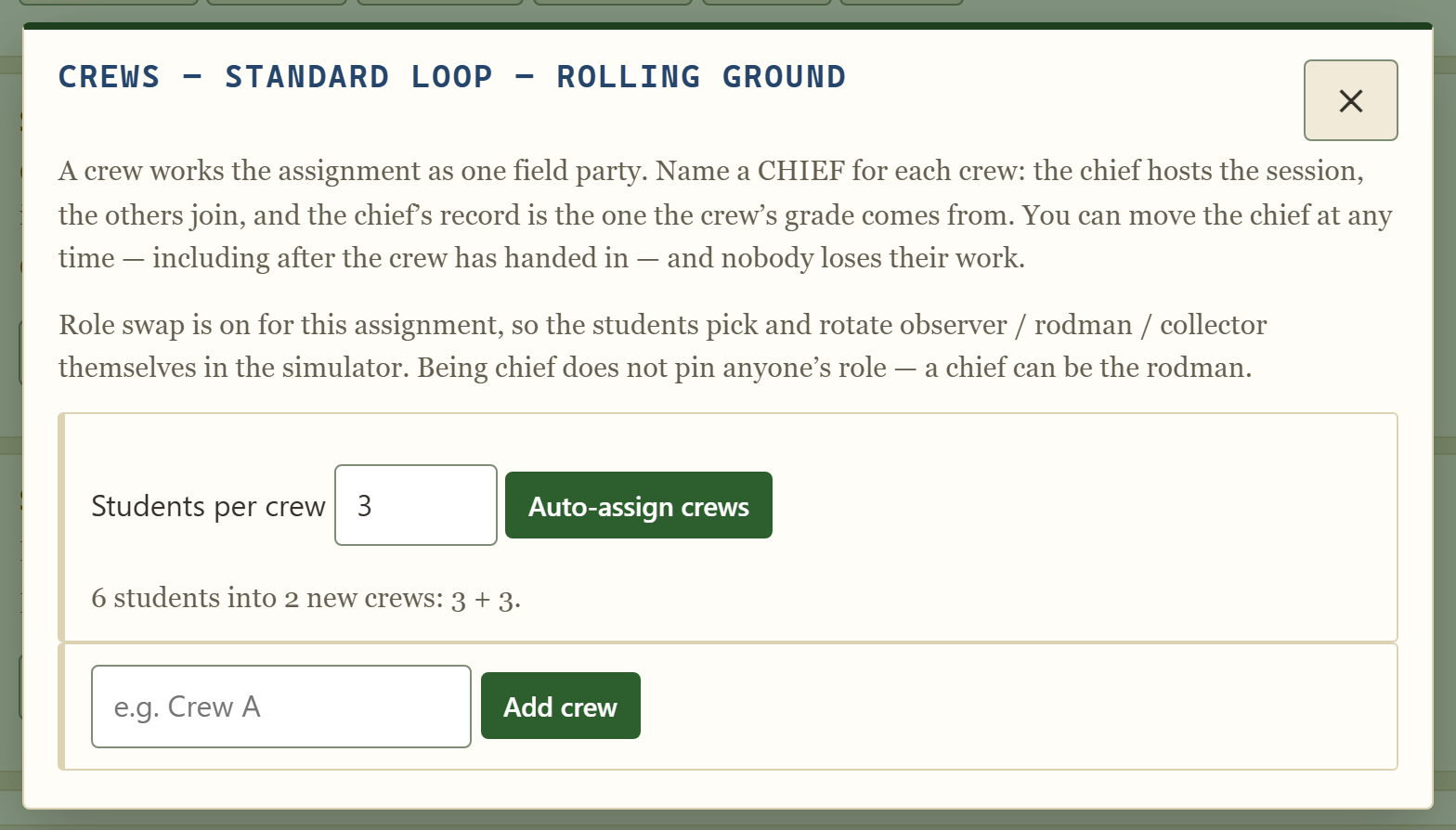
- Auto-assign crews deals the whole unassigned roster at your target size, shows the exact split first, and never leaves anyone alone — 7 students at 3 per crew is 4 + 3, never 3 + 3 + 1. Existing crews are left untouched.
- Name a chief for each crew. The chief hosts the session and their record is the one the crew's grade comes from. You can move the chief at any time — even after hand-in — and nobody loses work.
- Seats. With role swap off, you assign each member observer / rodman / collector and the session seats them; with it on, the crew rotates freely — everyone reads the instrument.
- Sessions are scoped. A crew's room admits only that crew — plus you, from a test run of the assignment. Class-mode sessions admit only your class. A shared room code doesn't let a stranger in.
- Never make crews mandatory for graded work if your network is restrictive: school Wi-Fi sometimes blocks peer connections, so Solo or crew is the resilient setting.
Lab day
what you watch, what they see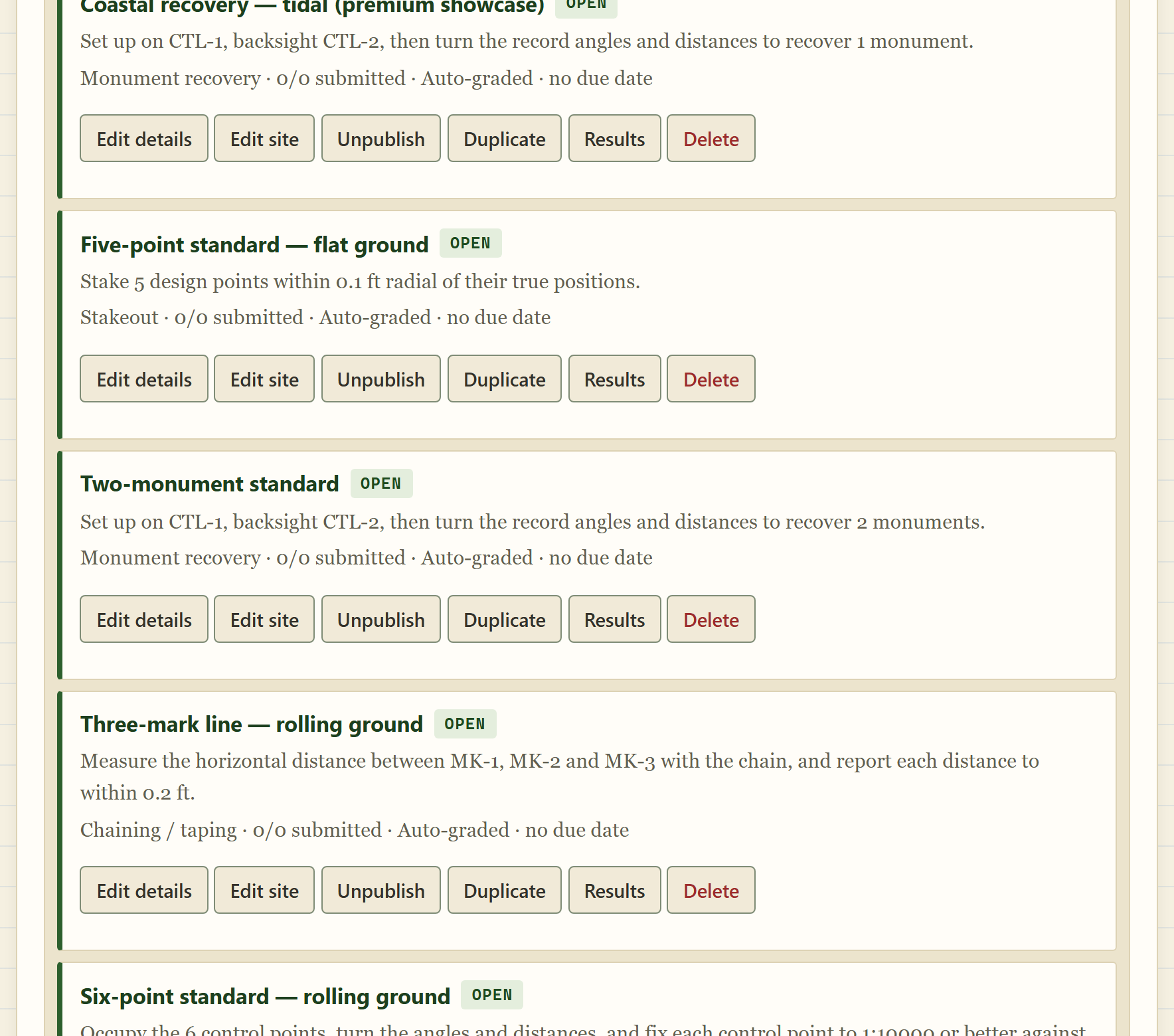
- Students launch from their own assignment list — the sim builds the exact site you published and places your control. ⚠ The task panel's objective and numbered steps are generated from the exercise and your mark names, not written by you; the only words of yours on it are the assignment title. Your own instructions go in site notes — up to 20, 280 characters each, dropped on the ground in the builder's Notes tab. A student walks into a note's ring, reads it, and can re-open every one from a checklist in the task panel.
- Work saves as they go. Attempts checkpoint automatically every 25 seconds; the digital field book saves on its own channel. A dropped Wi-Fi or a closed lid resumes where it left off.
- Watch the row. Started / submitted counts update on refresh; Results opens per-student status without waiting for the bell.
- Unpublishing mid-lab asks first — it would 404 students who reload — and tells you how many are still working.
- Reopen hands one submitted attempt back to its student (their work intact) when someone hit Submit by mistake; the gradebook stops counting it until they hand in again.
Grading and exports
the server knows the ground truth- Auto-graded work scores at hand-in against the server's own regeneration of the site — true coordinates and elevations, never client-asserted numbers. Suspicious submissions carry honest anti-tamper flags rather than silent trust.
- Review on any student opens the attempt drill-down: the rubric line by line, their field book page by page (sketches included, printable), signed millimeter residuals per shot, and the verbatim raw records.
- Entering a grade by hand. Submission review work — and anything the auto-grader declined to score — waits for you: open Review, read the record, and enter the grade right there (Pass or Not yet, a percent, and a note the student sees). Saving releases it — the student sees the grade the next time they open the assignment, and the results table and CSV pick it up at once. Change grade revises it any time; the superseded grade stays in the attempt's audit trail. Grading a crew's record grades the whole crew in one save.
- Re-grade — per attempt, or the whole assignment at once with a preview of exactly whose score would move before anything is written. The machine never re-grades over a grade you entered by hand: the sweep skips those rows and says how many it left alone.
- Grades CSV exports the class's scores in one click for your LMS gradebook.
- Field book branding (paid plan) lives on your classes list: one logo for your whole account, on every student's field book cover in every class — including classes you create later. PNG or JPEG under 85 KB, and make it wide — the cover reserves a banner about 4× wider than tall, so around 1200 × 300 px is ideal. A square logo still works but prints small. A transparent PNG sits best; the cover behind it is cream paper.
- Units. Set the class-wide reporting unit on the class page; any single assignment can pin its own. That choice drives the reported numbers and the grading — it does not reach the student's screen. What their screen shows is decided by the collector job: while a job is open, the job's unit takes over every distance they see, LCD and field book included, whatever their own preference is set to. That is the right way round — one job, one unit — and it is why a foot job cannot be booked in metres by mistake. Their personal preference only applies when no job is open.
When something goes wrong
- Forgot your password? The sign-in page has the button. The emailed link is valid for one hour, works once, and signs out every other device when used.
- A student lost their slip — nothing is broken and nothing needs resetting. Click the masked code beside their name to reveal it, click again for a ready-made message, or reprint the sheet. The code has not changed and their PIN still works.
- A student forgot their PIN — Reset PIN on their roster row. That clears the PIN and issues them a new code, so the slip they are holding stops working: give them the new one. Their attempts, grades and field book are untouched. Nothing expires and nothing is shown only once — the new code sits on the roster like the old one did.
- A student says the code does not work — check which box they typed it into. The class code is 6 characters and everyone in the section shares it; their personal code is 8 and is theirs alone. Also check nobody has reset their PIN since the slip was printed.
- Someone turns up who is not on the roster — add them to the roster as usual, then reveal their code and hand it over, or print the sheet again. Adding one student does not disturb anyone else's code.
- "This site is blocking the save" on an edit means the assignment's site fails the publish gate, not your edit — the message links straight into the builder to fix it.
- An assignment won't publish — read the gate's reason; it names the sight line or geometry at fault, and it tells you the fix for the site you have. On an authored site that is move a mark, or move the obstruction — which is the same repair you would make on real ground, where you cannot swap the site out. ⚠ Rerolling is not available to you here: the 🎲 button locks the moment a site has authored marks, so the seed is only a lever while the ground is still bare.
- A crew can't connect — school networks sometimes block peer-to-peer traffic. The session falls back to a relay automatically; if a crew still can't form, they can work solo on a Solo or crew assignment without losing the period.
- Changed your mind about a published site? If students have started, the site is frozen — Duplicate copies everything into a fresh draft to revise and re-publish.