 SurveyorSim
student guide · your records
Where your work goes, and which part is graded
SurveyorSim keeps your work in three separate places, and nothing is copied between them. On a graded leveling assignment only one of the three is read, and only the entries you have tagged inside it count at all. A student who books every number correctly and tags nothing can score zero. This page is how that does not happen to you.
The three records
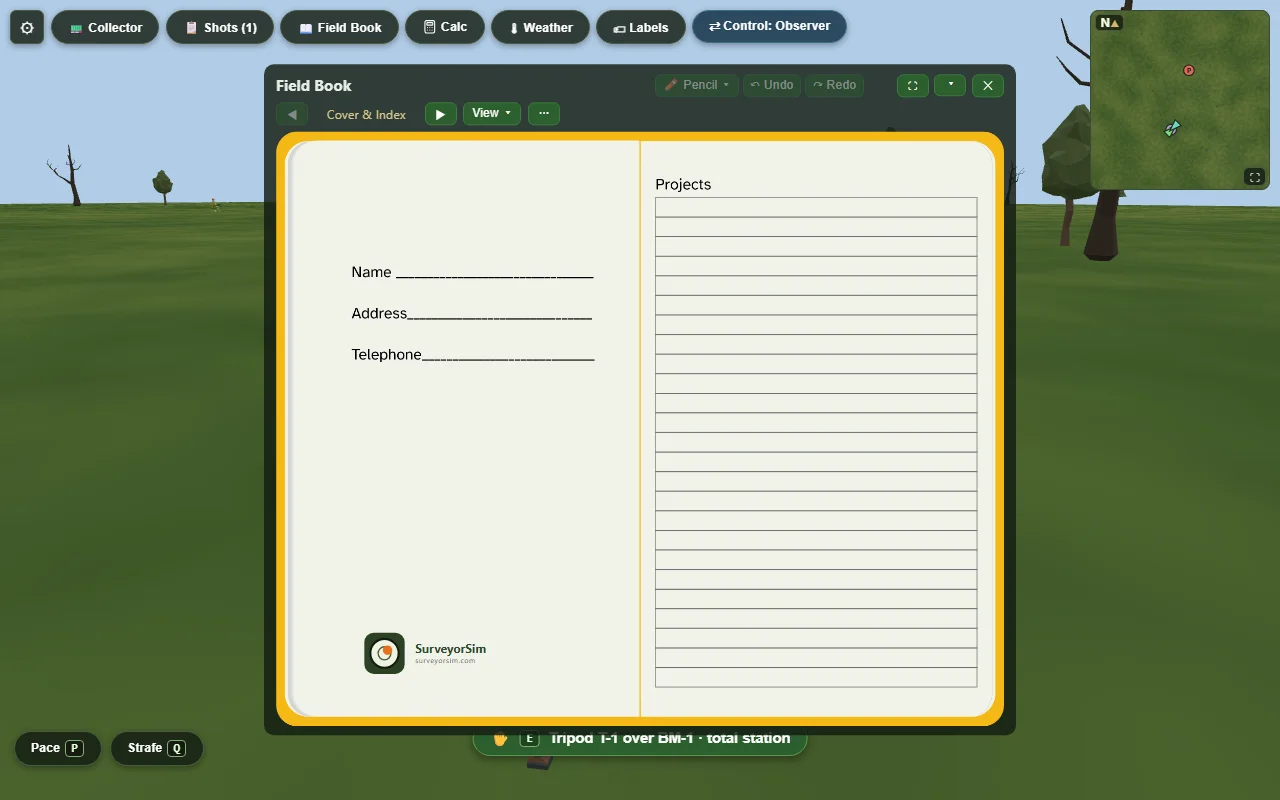
they do not talk to each otherThree buttons sit at the top-left of the screen. Each opens a different record. They look related and they are not: nothing you write in one appears in another, ever, and only one of them is your graded submission.
📋 Shot Log
The instrument's own list. Every shot you take lands here by itself, with the angles, the distances, the instrument and rod heights, and the coordinates. You never type into it and you cannot change it.
Opened by the 📋 button. The button counts your shots.
📖 Field book
Your book. You write every value in it, by hand, exactly as you would on paper. The sim never fills anything in, never suggests a number and never checks your arithmetic while you work. On a graded leveling assignment this is the record that is marked.
Opened by the 📖 button, or RB on a controller.
📟 Collector
The data collector, a working handheld with its own job file, point list, COGO tools and raw record. Useful, and on most assignments not the thing that is graded.
Opened by the 📟 button. The data collector covers it.
The one place they touch: pressing Distance on the collector fires a real instrument reading, so a row appears in the Shot Log at that moment — before you store anything. That is the instrument being used, not the two records syncing. It does not work the other way round: a reading you took at the telescope's Measure key cannot be stored into the collector's job, and the collector will tell you so.
At an eyepiece the Shot Log is not available; its button is removed while you are looking through. The field book, the calculator and the collector stay.
Ink, and why you never erase
field rulesOn a graded assignment your book follows field rules, the same discipline a real book keeps: you do not erase, you strike. Written down once, it is short.
- A value becomes ink when the pen leaves the cell. Not as you type — when you click away, tab out, or press Esc. From that moment the cell is read-only.
- Wrong entry? Strike it. The struck value stays visible with a line through it, which is the point — the record shows what happened. A struck cell cannot be rewritten, cleared or reused. Write the correction in a new cell.
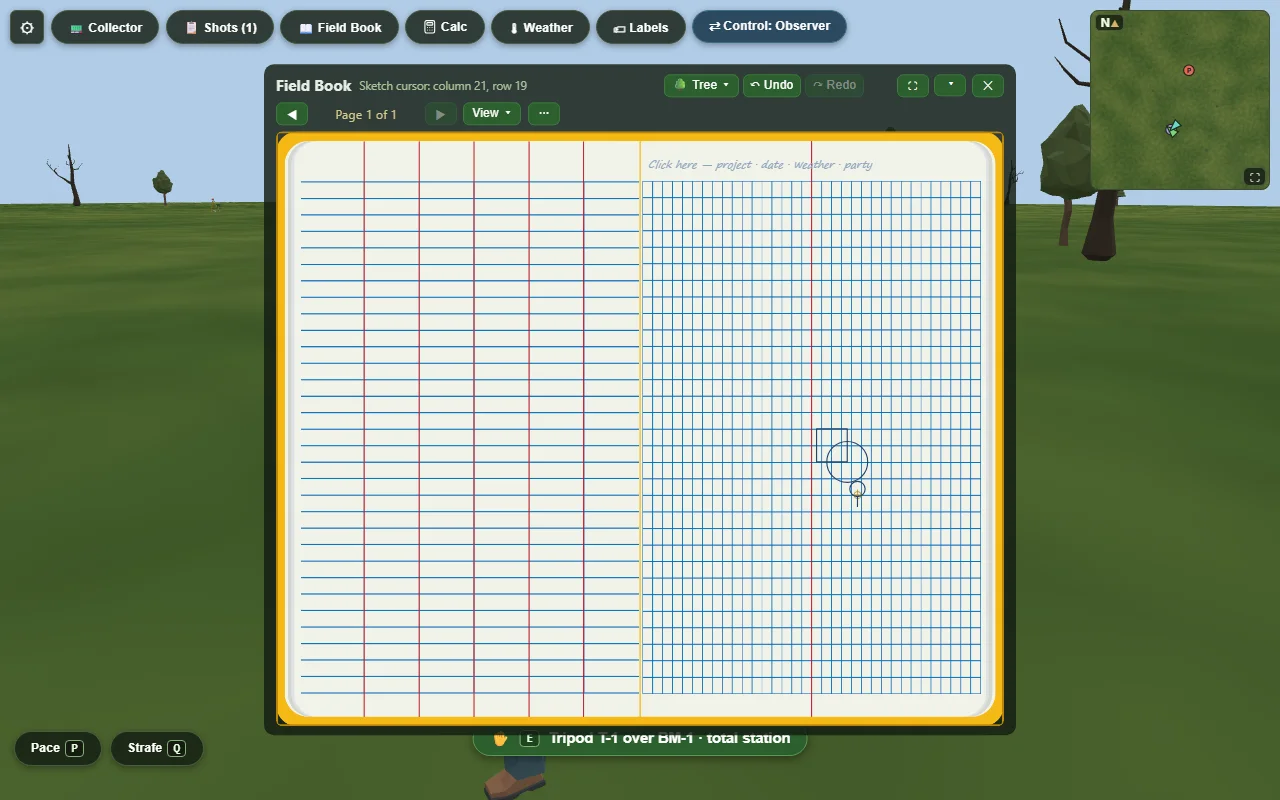
- There is no undo. Undo and redo work on the sketch only, never on a booked number.
A cell holds 24 characters, and the pen stops at that point — the 25th keystroke is refused, the way a real cell runs out of room. Nothing you have already written is lost or trimmed. Before it gets there the handwriting drops a size to squeeze a long entry in, so a cell that looks small is still whole. Keep entries short — which, for a value you intend to tag, means a bare number and nothing else. See tagging.
A page belongs to the first assignment you write on it. The claim is made by your first edit of any kind while that assignment is open — not by tagging. Write on a page before pressing into the assignment and that work sits on an unclaimed page which is neither graded nor handed in. A page raised under an earlier assignment refuses new answers and tells you to start a new one; add one from the ⋯ menu.
Two more things live under ⋯: ƒx Reference formulas, the printed formula pages in the back of the book, and 🖨 Export the book as a PDF if you want your own copy.
Tagging — how an answer counts
the whole grade turns on thisOn a graded leveling assignment the marker does not read your book looking for answers. It reads only the cells you have tagged, and it reads nothing else — not the cell next door, not a correct number in the right column, not the page as a whole. A tag is you saying this entry is my answer for that point.
Where the button is
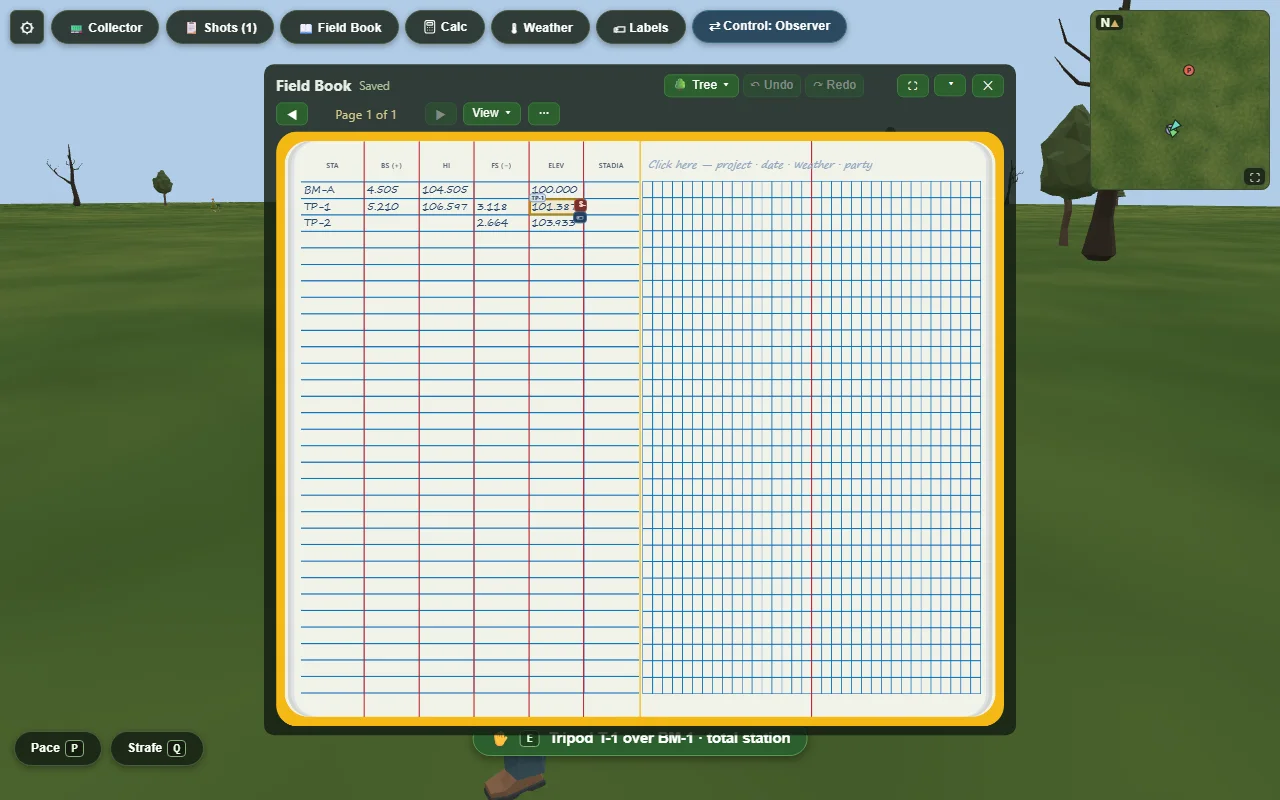
The 🏷 command appears on an entry in your field book. It shows up when the cell has focus — click or tab onto the entry first; hovering is not enough. It exists only when all four of these are true:
- an assignment is open,
- the exercise is differential leveling,
- the cell has text in it, and that text is already committed ink,
- field rules are on.
If you cannot find 🏷, one of those four is the reason. The commonest is the third: you cannot tag a cell you are still typing in. Move the pen out first.
There is a fifth rule, and it works differently: the page has to belong to this assignment. That one does not hide 🏷 — the command is there, and when you press it the menu answers "This page belongs to an earlier assignment — start a new page from the ⋯ menu to report answers here." So if 🏷 is visible but will not take your answer, it is the page, not the cell.
What you tag
- One elevation for every turning point the assignment asks for — the task panel names them.
- Exactly one closing elevation, on a published benchmark.
A tagged cell shows a small chip beside it — TP-1 for a turning point, ⌖BM-A for a closing tag. That chip is your confirmation the tag took. Reopening the menu shows a ✓ against the row that is currently yours.
Changing your mind
Tag the wrong cell and the menu on the tagged cell offers ✕ Remove tag. That lifts the tag and leaves your ink alone — nothing is struck and nothing is lost. Use it.
If you try to report the same answer twice, the second one is greyed out and says "Already reported on page N — open that entry and use ✕ Remove tag first." Do that: go to page N, use ✕ Remove tag, and tag the entry you meant. Removing a tag leaves your ink alone. Striking it out would take the ink with it, which is the more expensive way to fix a tag you simply put in the wrong place.
Striking an entry voids its tag. If you strike a tagged value, that answer is no longer reported and you must tag the replacement.
What the grader actually reads
before you press SubmitThe task panel carries a live checklist — Report in the field book (2/4) — naming every answer still outstanding, with a ✓ or a ◻ against each. It refreshes as you tag. Clear it before you hand in.
Reported and correct are separate lines on your result. You can report every turning point and still lose marks for a bad reading, and you can close within tolerance and still lose the line for a point you never tagged.
The book also wants a title line on the page, and the graph page wants a sketch. Nothing on screen prompts you for either.
Handing in
- If answers are untagged you get a warning naming how many. It does not stop you. Read it rather than clicking through it.
- You are then asked to confirm. Submit is final — you cannot change the work afterwards, and handed-in pages become read-only.
Reopening a submitted assignment, you may find red marks on your sketch. Those are your instructor's, drawn on the handed-in copy. They are not part of your document and you cannot remove them.
The data collector
📟The 📟 Collector button opens the handheld. There is no keyboard shortcut and no controller button for it. It opens itself when you take the collector's seat in a crew, and again when you return to an eyepiece having had it open there. Closing it keeps your job and your page — but it does not keep a half-typed point number: reopening re-suggests the next one and your keyed value is gone. Only folding the handheld away leaves a part-finished entry untouched. Finish the number before you close.
Step away from an eyepiece and the handheld closes itself if it was not already open before you stepped up. It has not lost anything; press 📟 again.
Getting around it
Five tasks — Set up, Measure, Stake, COGO and Job — spread over twelve pages, plus Home. Home always opens a task on its own first page. The Page key turns pages within the task you are in and wraps at the end. Nothing else moves you.
The softkey row is always six positions. Fn is a second row of keys, not a modifier you hold — press it and the row changes, and it stays changed until you press Fn again. Turning the page does not put it back. If the labels look unfamiliar, that is usually why.
The strip of small cells along the side — Face, Comp, EDM, Link, Target, Tgt ht — is status only. The collector cannot change any of the first four. Face, the compensator, the EDM mode and the radio link belong to the instrument — set them there.
Hz and V appear on one page in the whole device: Measure → Readout. The Set up pages show no horizontal angle at all — read the circle on the instrument's own LCD, which shows you the angles whenever you want them. The collector is the remote, not the only screen.
The drift is a number, not a diagnosis, so it asks you what it means: Rename (that was not the backsight — store it as an ordinary point), Store check (record it, leave the orientation alone), or Re-orient (record it, then re-zero on the backsight). All three write the check into the raw record as an observation. It never makes a point, and it never overwrites the control it was checking.
The job
- You choose the unit when you make the job, and you can change it afterwards from the Units softkey on the Fn row — it is on every page. It re-units every distance on screen, and for everyone if your crew is sharing a job. Nothing stored moves: coordinates are held in metres either way, so only the display and the export change.
- Pressing New Job with a job already open parks the current one and returns you to the form. Nothing is deleted; reopen it from Job → Settings.
- Export lives on the Fn row: from Job → Points it writes a CSV of your points, from Job → Raw it writes an RW5 of the raw record.
- In a crew only one seat may write to the job — the collector, or the observer if there is no collector. Everyone else can look and not touch, and the status row says whose it is.
Your instructor can remove the handheld from an assignment. If they have, the 📟 button is simply not there — you are not told why, and nothing is wrong with your session. Ask them if you expected it.